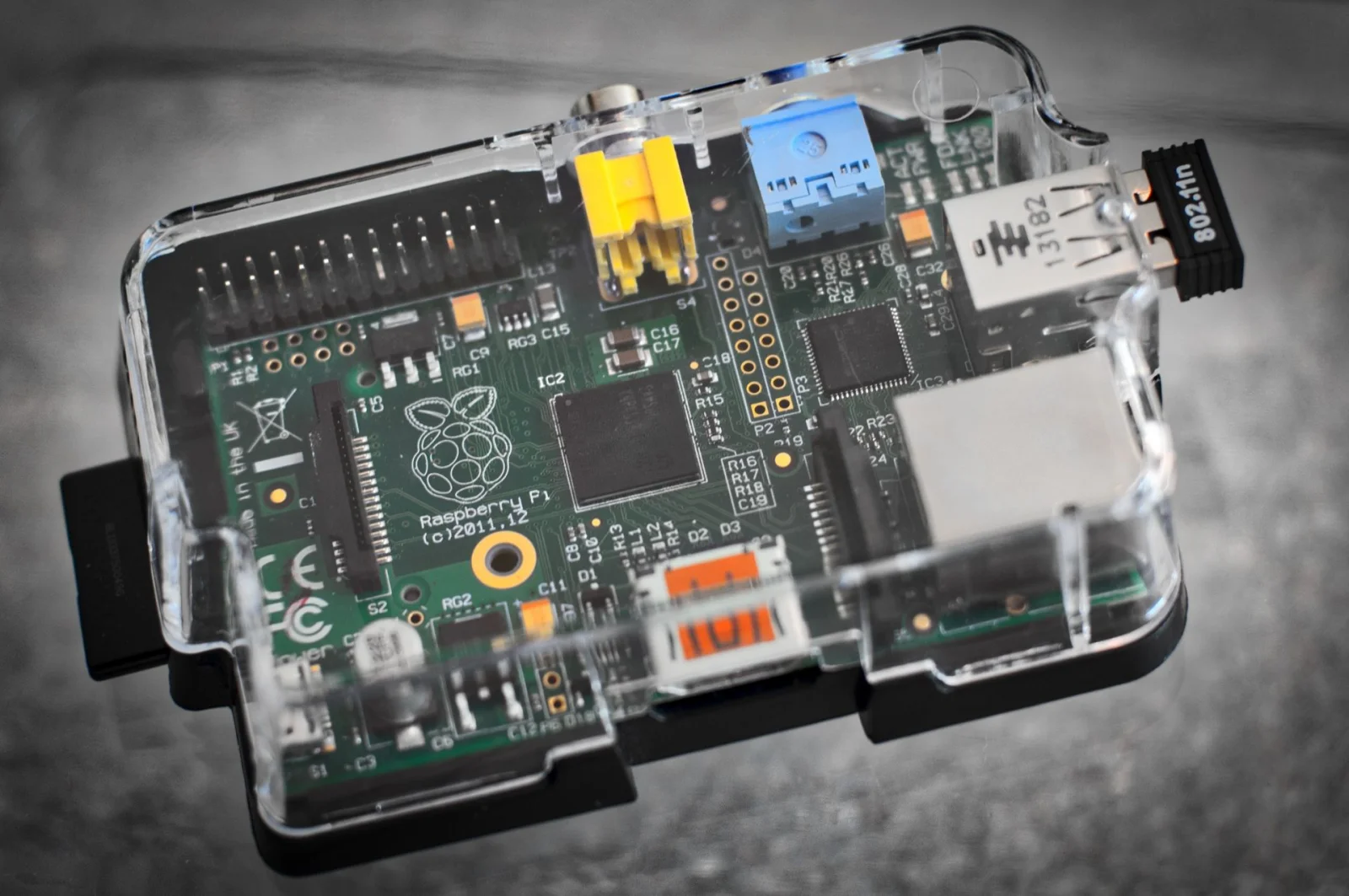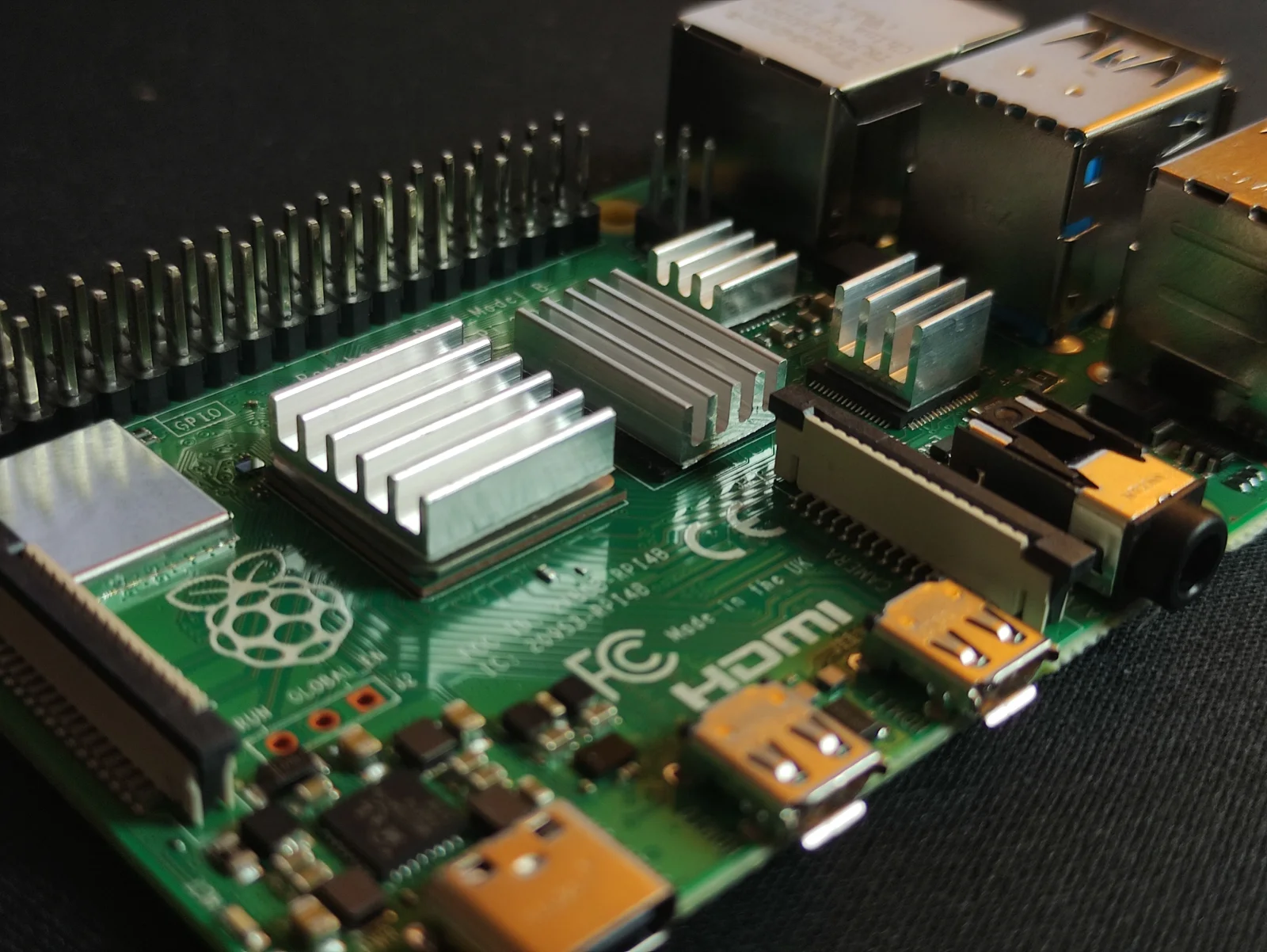
Video delay on the Raspberry Pi can be a frustrating experience, especially when you’re in the middle of an important project or presentation. Whether you’re streaming video content or using the Pi for real-time video processing, understanding the root causes and solutions to delay issues is crucial. Let’s explore how to optimize your setup, ensuring smooth and lag-free video performance.
Chapter 01
Understanding the Causes
Identify what leads to video delay on your Raspberry Pi and how to address these issues effectively.
Hardware and Software Limitations
The Raspberry Pi, while versatile, has its limitations. Video delay can stem from both hardware constraints and software configurations.
-
GPU Memory Allocation: Insufficient allocation of GPU memory can heavily impact video performance. A well-optimized allocation is essential for handling video processing efficiently.
-
CPU Usage: High CPU usage due to background processes can also contribute to delays. Ensuring minimal background activity is key to smooth video playback.
Network Latency
Network factors can also play a significant role. A stable internet connection is critical, especially for streaming or real-time applications.
Optimizing both hardware and network settings can drastically reduce video delay.
A systems engineer
Addressing Software Bottlenecks
Software inefficiencies can be as crippling as hardware limitations. Ensuring your Raspberry Pi runs an optimized operating system version can reduce unnecessary load.
sudo raspi-configConfigure GPU Memory: Navigate to Advanced Options > Memory Split and allocate more memory to the GPU. This step helps in managing video rendering tasks better.
Chapter 02
Optimization Techniques
Explore actionable strategies to enhance your Raspberry Pi's video handling capabilities.
Optimizing for Performance
Performance optimization involves a blend of tweaks and settings adjustments.
- Close Background Apps: Use the command
topto monitor and terminate unnecessary processes. - Update Software: Regularly update your Raspberry Pi’s software to benefit from the latest performance improvements and bug fixes.
Narrative flow
Scroll through the argument
01
Step 1: Check GPU Memory
Ensure GPU memory is set to at least 128MB for optimal performance.
02
Step 2: Manage Background Processes
Terminate non-essential apps that consume CPU resources.
03
Step 3: Network Stability
Use a wired connection to minimize latency issues.
Real-World Application
In practical scenarios, like using a Raspberry Pi for video conferencing, reducing delay can significantly enhance the user experience. The techniques mentioned above ensure that your video streams are clear and uninterrupted.
Troubleshooting in Action
Overclocking Considerations
For those willing to push the boundaries, overclocking can offer performance boosts. However, it comes with risks like overheating. Always ensure proper cooling measures are in place.
over_voltage=2
arm_freq=2000
gpu_freq=600
Chapter 03
Final Thoughts and Recommendations
Conclude with practical recommendations to keep your Raspberry Pi running smoothly.
The Balance of Power
Balancing performance improvements with system stability is crucial. Always back up your configurations before making significant changes.
Understanding and addressing video delay on the Raspberry Pi requires a multifaceted approach. By optimizing both hardware settings and network conditions, you can achieve significant performance gains. With these proven strategies, your Raspberry Pi will be better equipped to handle demanding video tasks, ensuring a smoother and more reliable experience.